A useful desktop layout helps a person complete a task without hunting through windows or struggling to read the screen. It does not need to look identical for every employee. A dispatch view, financial workbook, and document review can each call for a different arrangement.
Keep only the adjustments that help
A desktop arrangement should survive the employee's real equipment and working day.
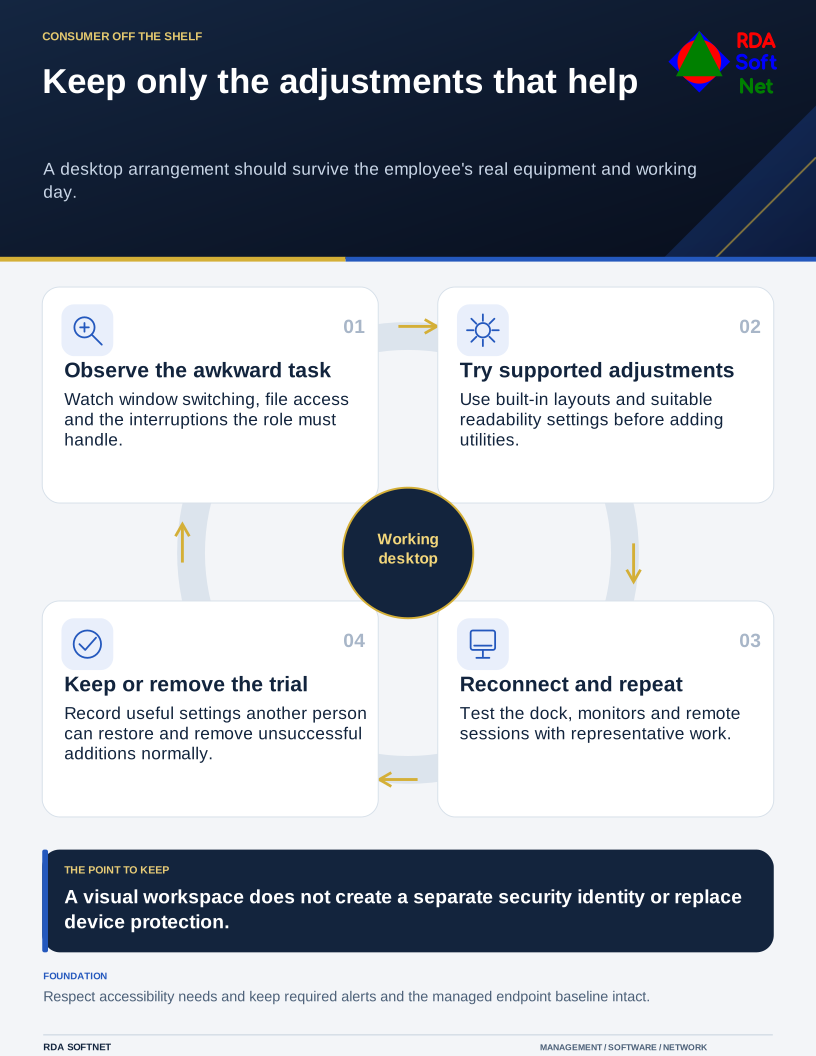
Ask the user to demonstrate the awkward part of their day. The problem may be switching between two applications, losing a window after docking, finding a department location, or receiving too many interruptions. Choose the adjustment that addresses that specific problem.
Try supported features first
Pin approved applications and frequently used locations. Use built-in window arrangements and workspaces before installing additional utilities. Microsoft's multiple desktop guidance describes ways to group open work in Windows.
Virtual desktops help organize windows; they do not establish separate security identities or protect one task from a compromised device. Keep organizational access and information handling rules in place regardless of how applications are arranged visually.
Test the setup with the actual monitors, dock, and remote connection. A layout that looks convenient on one screen may be difficult after reconnecting a laptop or using a lower-resolution display. Record any adjustment that support will need to reproduce.
Make readability and operation personal
Review scaling, text size, contrast, pointer visibility, keyboard navigation, and appropriate assistive features with the employee. A larger or simpler display may help more than an elaborate theme. Do not assume visual preference and accessibility need are the same thing.
The accessibility guide connects those decisions with usable tasks and testing. Microsoft's focus guidance also explains notification and distraction controls. Preserve the alerts and availability required for the role while reducing unnecessary interruptions.
Teach a few relevant keyboard actions and let the user practice. A long shortcut list is less useful than a reliable way to switch applications, find the correct file, and recover a misplaced window. Keep instructions compatible with the employee's needs and equipment.
Keep customization supportable
Additional themes, extensions, widgets, or scripting tools introduce software and permissions that need review. Use application and integration review when a utility reaches browser content, files, accounts, or other applications. Approval should consider the actual function and publisher rather than the attractiveness of a screenshot.
Keep the endpoint baseline intact. Do not disable protection or grant permanent administrative rights merely to install a convenience feature. If a workflow requires automation, use the controlled automation process to address testing, ownership, failure, and rollback.
End by having the user complete representative work and show another person how to restore the useful settings. Include reconnecting the dock or remote session if those are part of the day. Keep the few adjustments that improve the task, and remove an unsuccessful trial through the normal process rather than leaving unused customization software behind.