A workstation can meet its hardware specification and still be frustrating to use. Staff may spend the day rearranging windows, losing a useful application behind notifications, or struggling with text that is too small on a docked display.
Fit Windows to the desk and the role
A useful setup respects display needs and essential alerts while keeping managed controls intact.
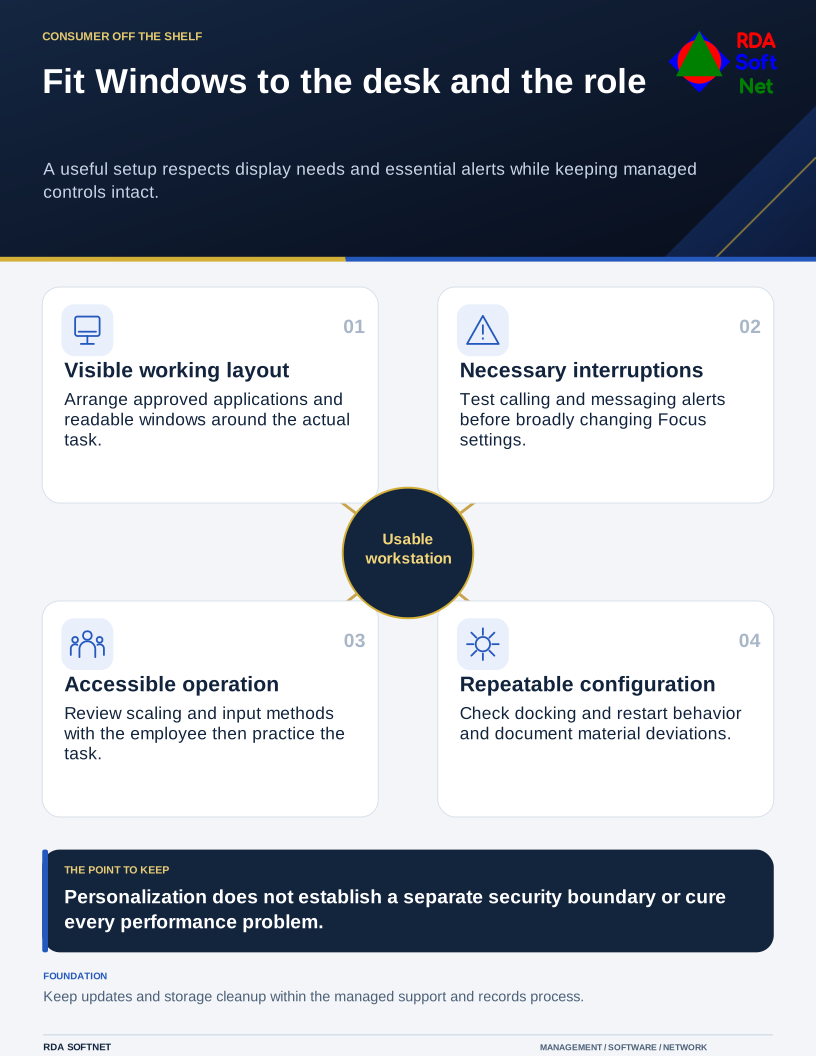
Start by watching the task that causes difficulty. A useful setup should reflect the applications, monitors, input methods, and interruptions the employee actually encounters. The same collection of settings will not suit every person.
Arrange the work where it can be seen
Keep frequently used approved applications easy to find in Start or on the taskbar. Remove visual clutter through permitted personalization, while leaving required organizational controls in place. An employee should not need to install an unknown customization utility to make a daily application accessible.
Microsoft's Snap guidance describes supported ways to arrange application windows. Try a layout suited to the task, such as a source document beside the system receiving its information. Check that text and controls remain readable on the actual display.
Virtual desktops can help organize separate groups of work, but they are not a security boundary between accounts or information. Keep confidential material in the approved applications and locations, with the right permissions regardless of which desktop displays it.
Show a few relevant keyboard actions instead of providing a long list to memorize. Include switching applications and locking the workstation, then let the employee practice the workflow they use most often.
Manage interruptions without hiding essential work
Windows Focus features can reduce distractions during a defined period. Review notifications with the employee and manager before changing them broadly. A person responsible for time-sensitive service requests may need different settings from someone preparing a long document.
Test the outcome with the real calling, messaging, and support applications. An operating system setting and an application's own notification policy can interact. Explain how the person restores normal behavior and gets help if something important stops appearing.
Allow suitable time for accessibility preferences. Text scaling, contrast, input options, magnification, and assistive technology should be tested with the individual. Our accessibility guide emphasizes whether people can complete a task, not merely whether a feature is switched on.
Keep the setup supportable
Record material departures from the standard configuration, especially where specialist applications or shared workstations are involved. Check the experience after docking, restarting, changing displays, or signing in remotely. A setting that works at one desk may need adjustment elsewhere.
Leave storage cleanup, security updates, and other managed policies within the approved support process. Before enabling automated cleanup, understand what it affects and where required records belong. Convenience should not determine retention of business information.
The endpoint management guide covers the maintained device beneath those preferences. Use the service review to raise recurring problems that personalization cannot solve. If an application remains slow or hard to navigate, capture the actual difficulty for support rather than asking the user to keep adjusting Windows around it.