
Two employees can use the same laptop model and need very different amounts of storage. One works mainly in a hosted application. Another processes large images, maintains offline project data, or works where connectivity is unreliable. A generic capacity recommendation misses those differences.
What belongs in a storage estimate?
Measure the complete working set and test how the role uses local and cloud files.
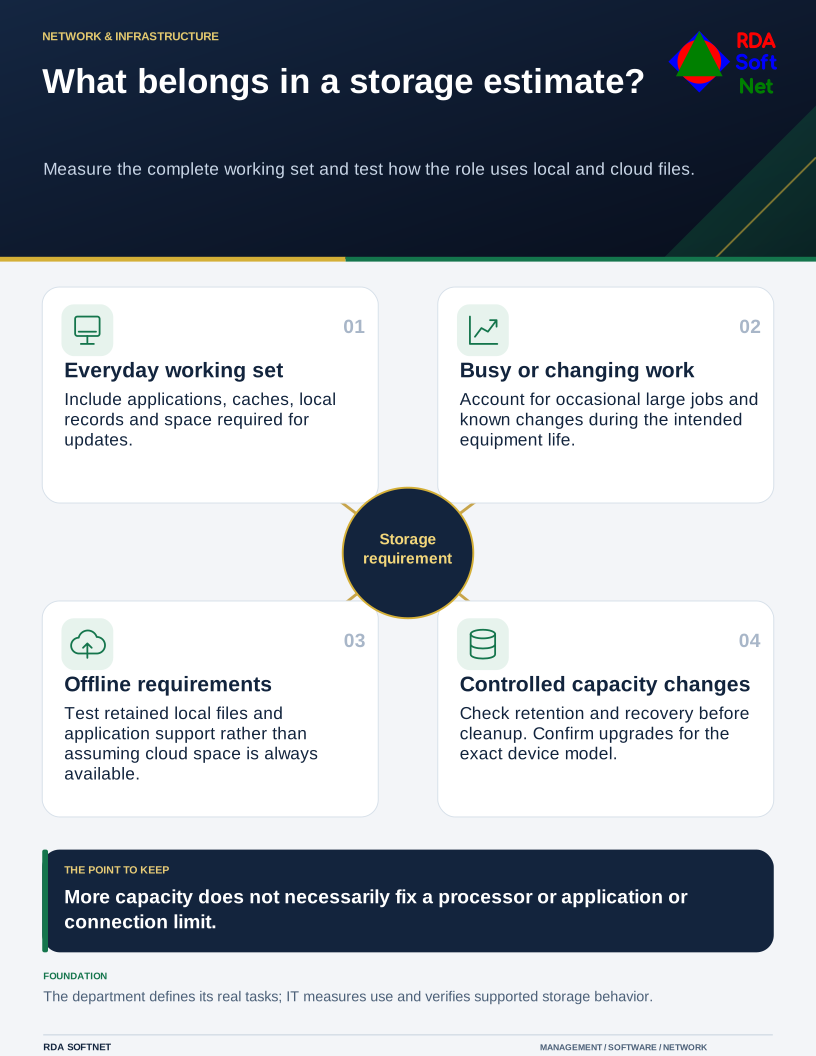
Start by measuring what the current work uses and what the replacement must support. Separate storage capacity from memory and processor performance. More disk space does not necessarily make a slow database or a limited internet connection respond faster.
Account for the complete working set
Include the operating system, approved applications, local data, mail caches, synchronized folders, temporary working files, and space needed for updates. Look at busy periods and occasional large tasks rather than a single quiet-day screenshot.
Ask the department what may change during the planned life of the equipment. A new application, imaging process, or field workflow may alter requirements. The planning guide helps turn that information into an agreed specification and a realistic operating cost.
Check whether the exact device permits an upgrade and what the supplier supports. Some storage is replaceable; some is not. A promised future expansion should be confirmed for the particular model, not inferred from another computer in the same product family.
Understand what cloud space does locally
Cloud storage can reduce the need to keep every file on the device, but only when configured for that purpose. Microsoft's OneDrive Files On-Demand guidance distinguishes online-only files from files retained locally for offline use.
An online-only file still needs a working access route when opened. Pin essential files for approved offline work and test the experience. Applications may require local data or behave poorly when expected files are unavailable. Do not assume every business application supports a synchronized cloud folder.
The file collaboration guide helps decide where official records belong. Deleting a synchronized file can remove it from the service as well as the device. Use the supported space-management function when the intention is only to release a local copy.
Keep capacity changes within the information plan
Before clearing old files, check records retention, legal holds, and business needs. Uninstall software through the managed process, and review automated cleanup settings before enabling them. Downloads and temporary folders can contain work that has not reached its final location.
External storage may be appropriate, but it needs ownership, suitable protection, and support. The encryption guide connects portable storage with key recovery and approved handling. An extra drive does not solve a backup requirement merely by being separate from the laptop.
After deployment, monitor capacity trends and investigate repeated pressure. Compare actual use with the estimate and record what changed. If the same cleanup is needed every week, review the application or storage arrangement instead of repeatedly asking the user to delete more. Representative tasks should work while required information stays accessible and protected.