
A QR code is a convenient way to carry information, often a web address. It does not tell you who placed it there or whether the destination is trustworthy. A code in a document, on a sign, or in an email deserves the same judgment as any other route to a website.
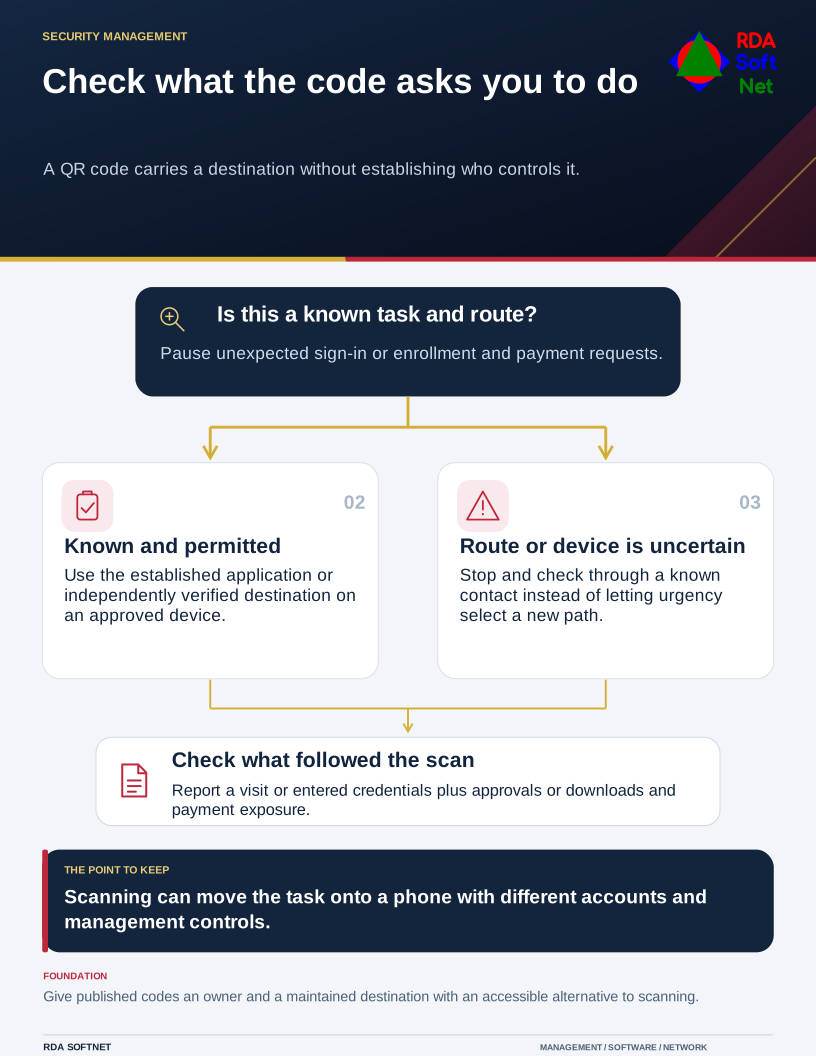
Check what the code asks you to do
A QR code carries a destination without establishing who controls it.
That judgment is easiest when the organization gives staff a known way to perform common tasks. People who already have the approved sign-in bookmark do not need a new code to reach the same account.
Check the purpose before the destination
An unexpected request to scan a code and confirm a password, enroll a new authentication method, or pay an invoice should pause the workflow. Open the known application or contact the organization through an established channel instead. Urgency does not make a new route more trustworthy.
The FTC's QR code scam warning describes malicious links in messages and replacement stickers over legitimate codes. It recommends checking the address and independently contacting the organization when a request is unexpected.
Previewing the address helps, but a small phone screen and a long URL make that imperfect. A familiar logo is easy to copy. The stronger habit for account and payment activity is to start from a route you already trust.
Notice when the device changes
Scanning a code from a work computer's screen often moves the activity to a phone. That phone may have different browser controls, account sessions, and management. It may also be a personal device with no approved arrangement for the information involved.
Do not assume that every email protection product ignores QR images; capabilities differ and change. Equally, do not assume that a delivered message has been approved as safe. Technology and staff practice need to support each other. The security awareness guidance covers reporting and verification without expecting employees to analyze malicious websites.
Use the remote work and personal-device rules to explain which devices may handle work sign-ins and information. A code is not permission to move a sensitive task onto an unmanaged device.
Give staff a clear response after a mistake
If someone scans an unexpected code, ask what happened next. Visiting a page, entering a password, approving an authentication request, downloading an application, and submitting card details are different exposures. That information helps the response team choose the next steps.
Report promptly through the known support route. Preserve the message or location of the code. If credentials were entered, the response may need to address active sessions and account changes as well as the password. If payment information was submitted or funds moved, involve the financial institution immediately.
For codes the organization publishes, assign an owner and review the destination. Inspect public signs for replacement stickers and remove retired campaigns. Provide an ordinary web address or other accessible alternative so the code is a convenience rather than the only path.
Include these scenarios in the incident and reporting process. At the next staff briefing, show the approved route to an account task that people regularly perform. Confirm that employees can find the reporting contact on their phone as well as on the work computer.