A desktop covered in files often points to a missing decision: where does the department's work belong? Moving everything into a new folder can make the screen cleaner while leaving records just as difficult to find, share, or recover.
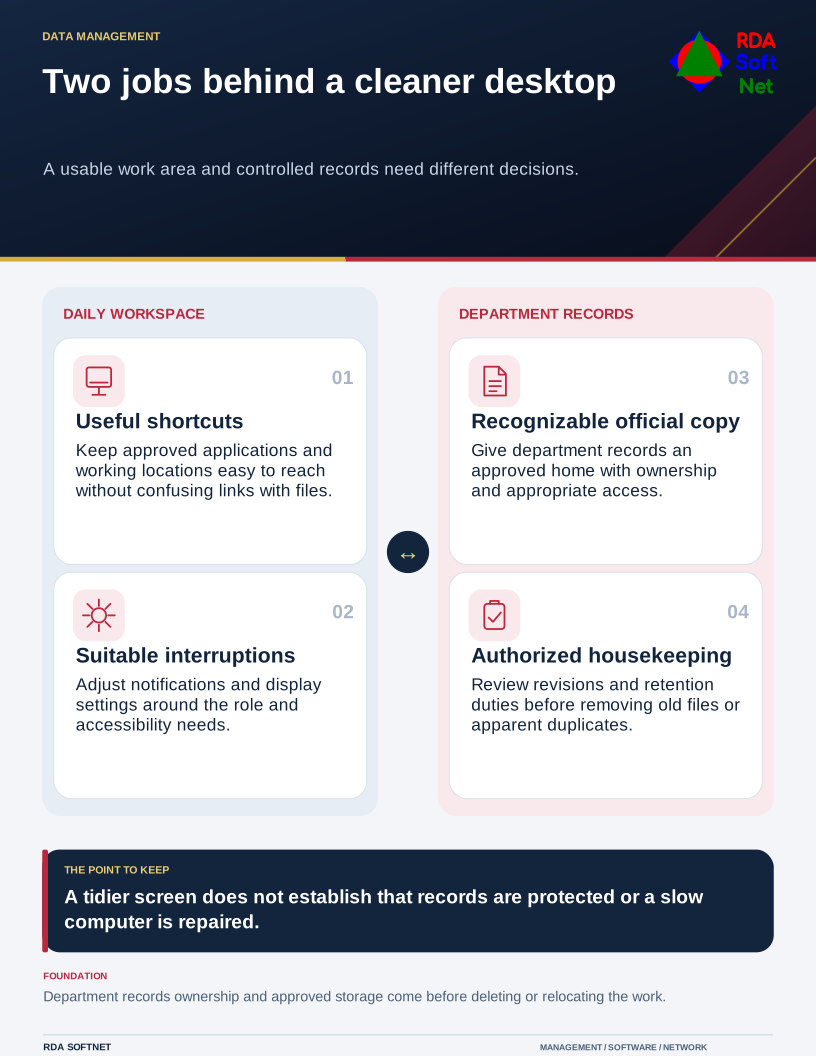
Two jobs behind a cleaner desktop
A usable work area and controlled records need different decisions.
Begin with one ordinary task. Ask where its incoming information arrives, which file becomes the working copy, who needs it next, and where the completed record should live. That conversation is more useful than prescribing the same folder layout for every role.
Give the official copy a recognizable home
Agree on approved working locations and simple naming conventions. Include project or case identifiers and useful dates where appropriate, without putting sensitive details into filenames that may appear in notifications or shared screens.
The file collaboration guide connects location with ownership and access. Department records need a home that continues to work when the original author changes roles. An employee's personal desktop or private cloud account should not become the department archive by accident.
Review older files with the records owner before deleting them. A folder that has not been opened recently may still contain required evidence. The records retention guide distinguishes an authorized disposal decision from ordinary housekeeping. Do not delete duplicates blindly when they may contain different approvals or revisions.
Make the working environment easier to use
Keep frequently used approved applications and locations easy to reach. Use meaningful shortcuts and remove broken ones. Remember that deleting a shortcut differs from deleting the file it points to; staff should understand which action they are taking.
Reduce nonessential notifications while preserving the alerts and contact routes needed for the role. Microsoft's focus guidance explains built-in ways to manage interruptions. Choose settings with the user rather than imposing silence on someone responsible for urgent calls or operational messages.
Check display scaling, keyboard use, and other accessibility needs. A visually simple layout is not necessarily easier for every employee to use. Test the actual application and document task after making changes.
Keep cleanup separate from troubleshooting
Do not promise that rearranging icons will cure a slow computer. Storage pressure, a failing application, network delay, and a security problem require different investigation. Report recurring symptoms with the task, timing, and any error message so support can assess the cause.
Let the computer department review unused software and browser extensions through the managed process. An unfamiliar background component may be required for security, printing, or device management. Removing it because its name looks unusual can create another problem.
Finish with a small maintenance routine: file completed work, review outstanding items, and confirm important information reached its approved location. Check backup and recovery arrangements rather than treating a cloud icon as proof of protection. Good organization makes the work easier to find and hand over, while keeping the responsibilities behind the files intact.